
Overview
This article explains how to configure a monthly communication workflow for Washington Paid Family and Medical Leave (WAPFML) when an employer opts into coordinating federal Family and Medical Leave Act (FMLA) with WAPFML job protection(WAPFML-JP) per an amendment to the WAPFML law effective January 1, 2026. The workflow automatically generates monthly reminders to send required communications from case creation through case closure.
Prerequisites
-
Access to customer-level configuration in the AbsenceSoft Platform
-
Washington PFML-JP policy configured in the system
-
Communication template approved by the client that meets Washington state regulations.
-
For more information on when this monthly communication is required, please see our Washington Paid Family and Medical Leave- Legislative Guidance.
Creating the Workflow
-
Navigate to the customer level in your environment.
-
Select Configurations | Workflows.
-
Click Create New Workflow.
-
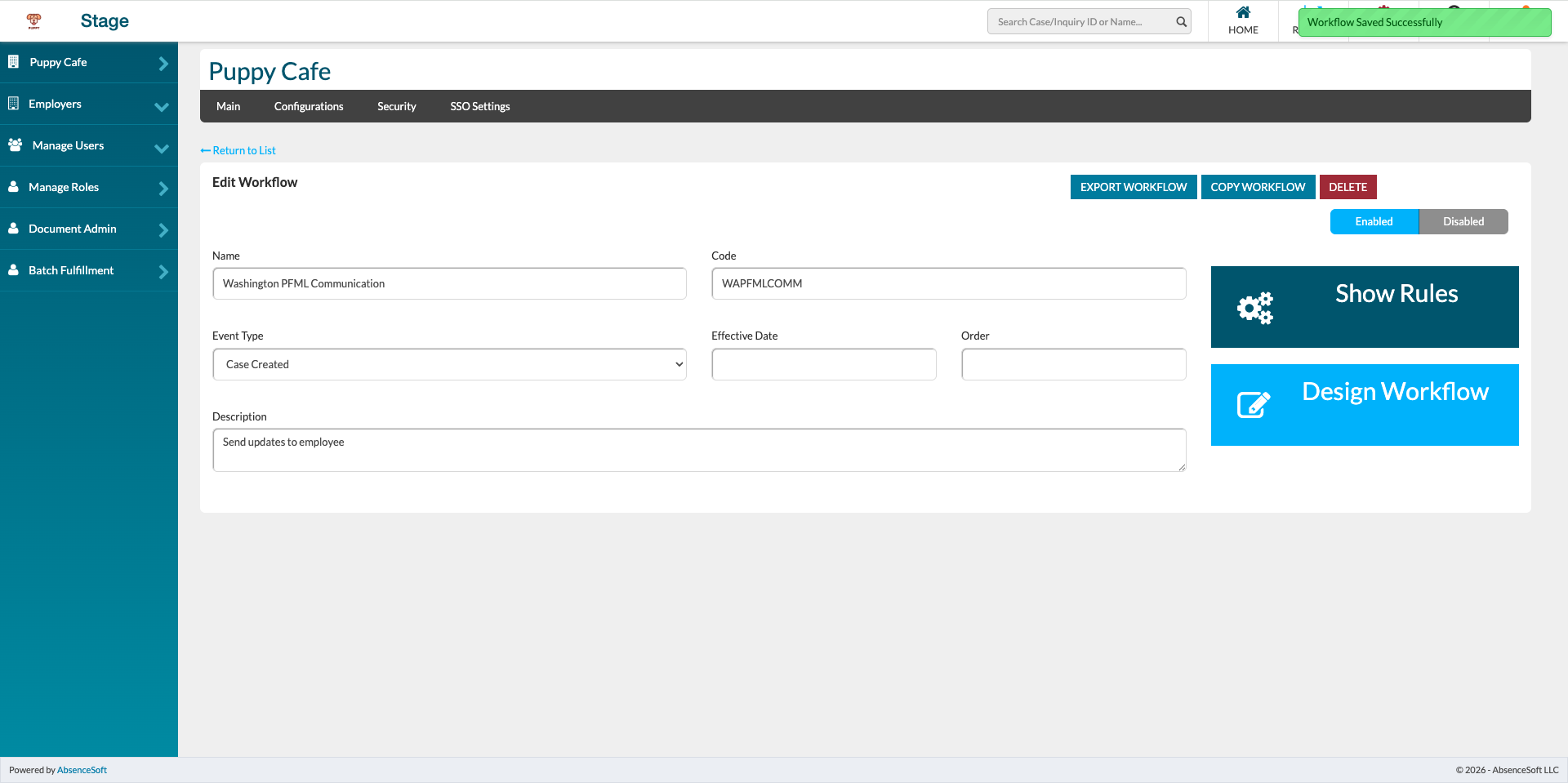
Enter the workflow name: Washington WAPFML-JP Monthly Communication.
-
Set Event Type to Case Created.
💡 The event type must be set to Case Created to ensure the communication sends monthly from case creation through case closure.
-
Click Design Workflow.
Configuring the Workflow Nodes
Adding the Condition Node
-
Add a Condition node to the workflow canvas.
-
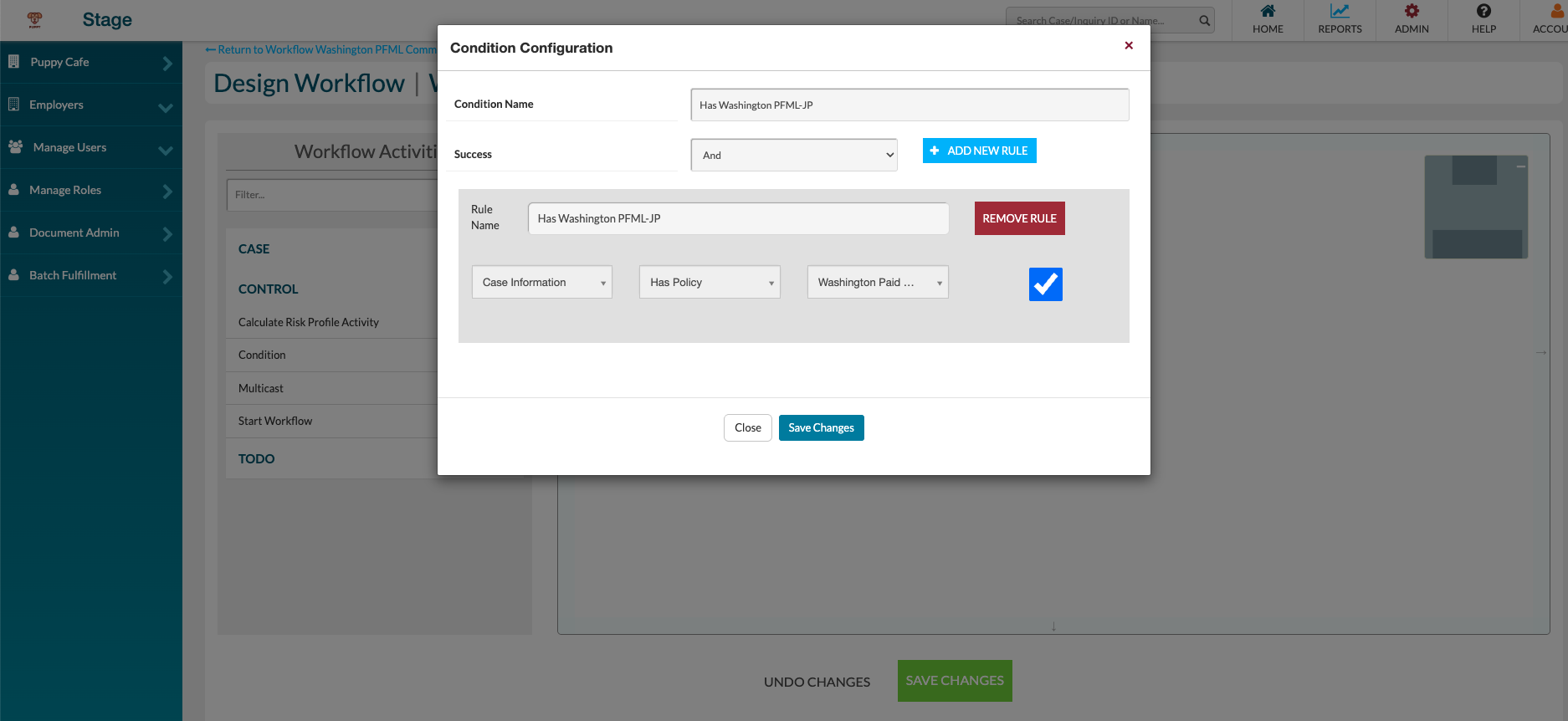
Configure the condition:
-
Set the rule type to And.
-
Select Case Information | Has Policy.
-
Choose the Washington Paid Family Medical Leave policy from the dropdown.
-
Leave the checkbox set to True.
-
-
Click Save.
Adding the Send Communication Node
-
Add a Send Communication node to the workflow canvas.
-
Connect an arrow from the condition node to the send communication node with the path set to Yes.
-
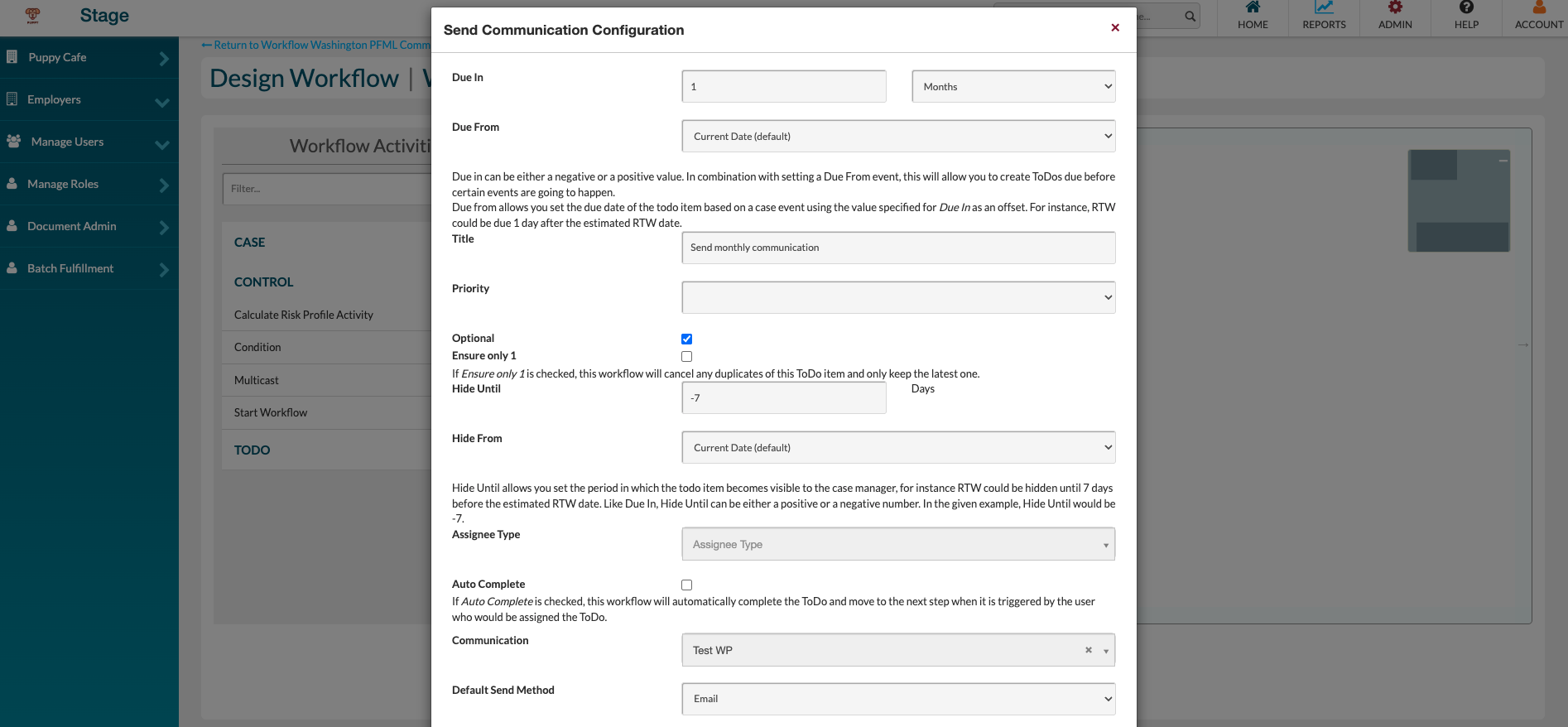
Configure the communication node with the following settings:
-
Due Date - 1 month from current date
-
Name - Monthly Usage Communication - WAPFML (or client-preferred name)
-
Optional - Select this checkbox to allow manual cancellation
-
Hide Until - 7 days before the due date
-
-
Select the communication template approved by the client.
-
Click Save.
|
Warning |
|---|
|
❌ Do NOT enable Autocomplete or Send Automatically on this node. Enabling these settings will cause the communication to send immediately instead of at the scheduled monthly interval, potentially sending communications daily rather than monthly. The communication must be sent manually. |
Adding the Multi-Cast Node
-
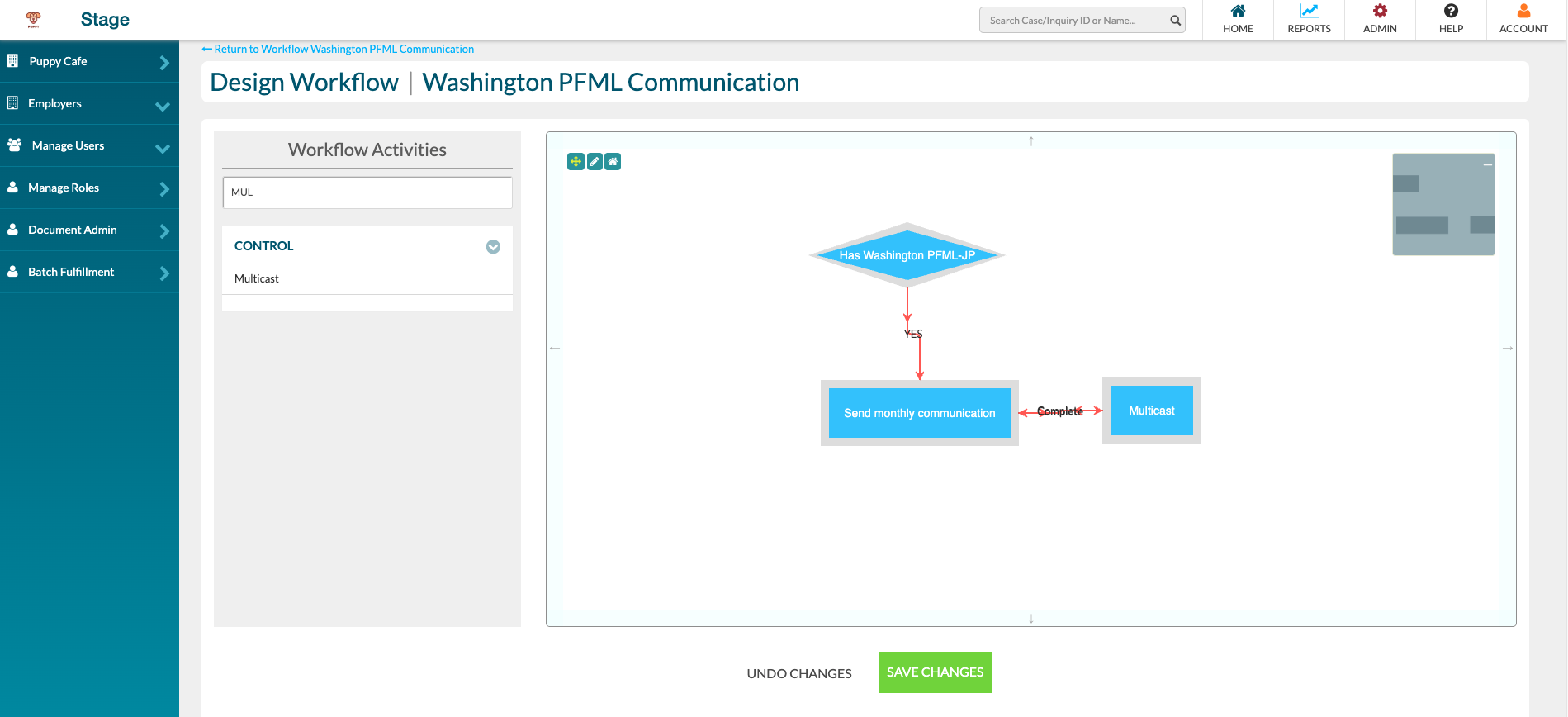
Add a Multi-Cast node to the workflow canvas.
-
Connect an arrow from the send communication node to the multi-cast node.
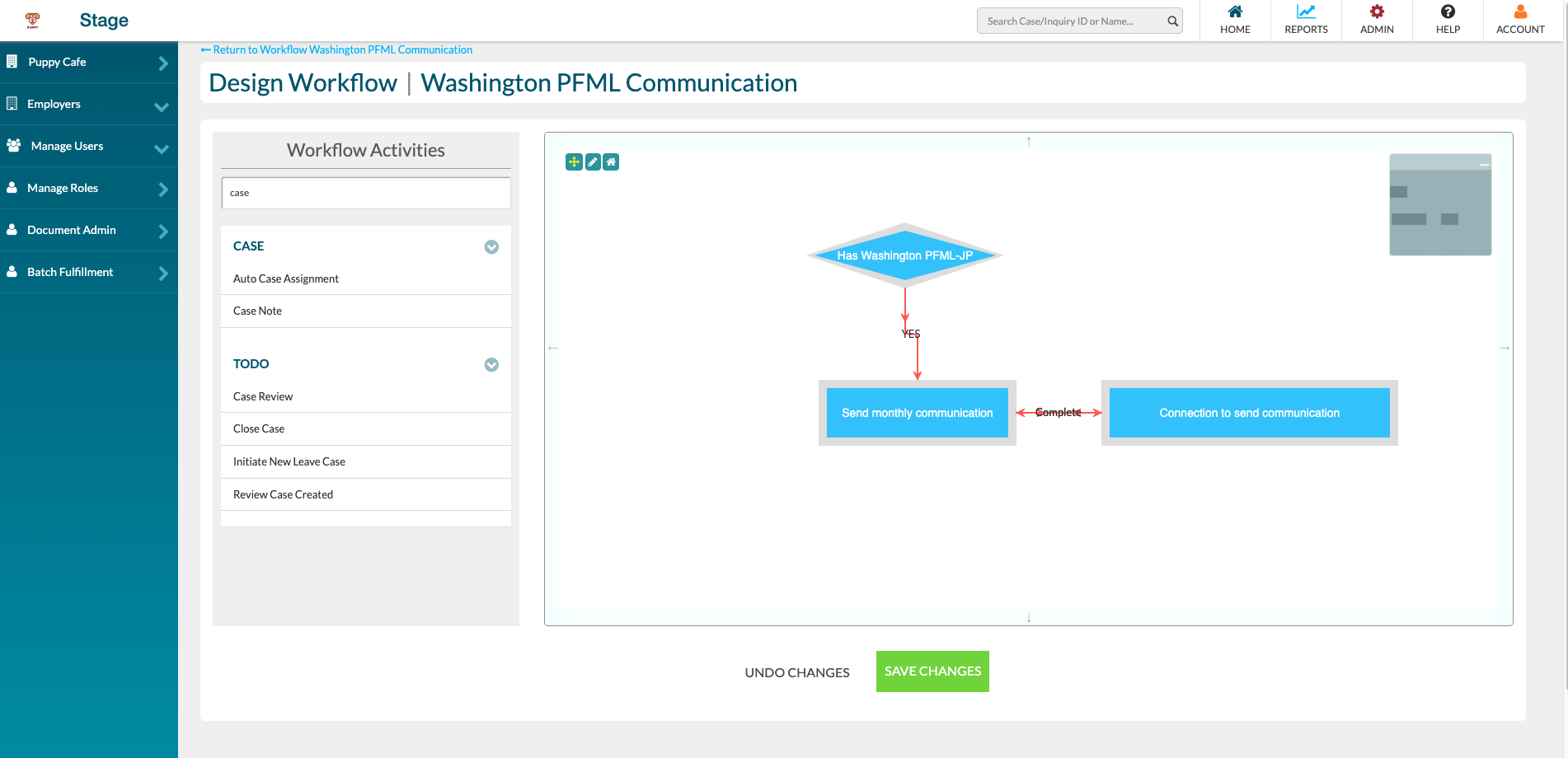
💡 Alternatively, you can add a Case Review to-do instead of a multi-cast node and set it to autocomplete.
Multicast Configuration
Case Review Configuration:
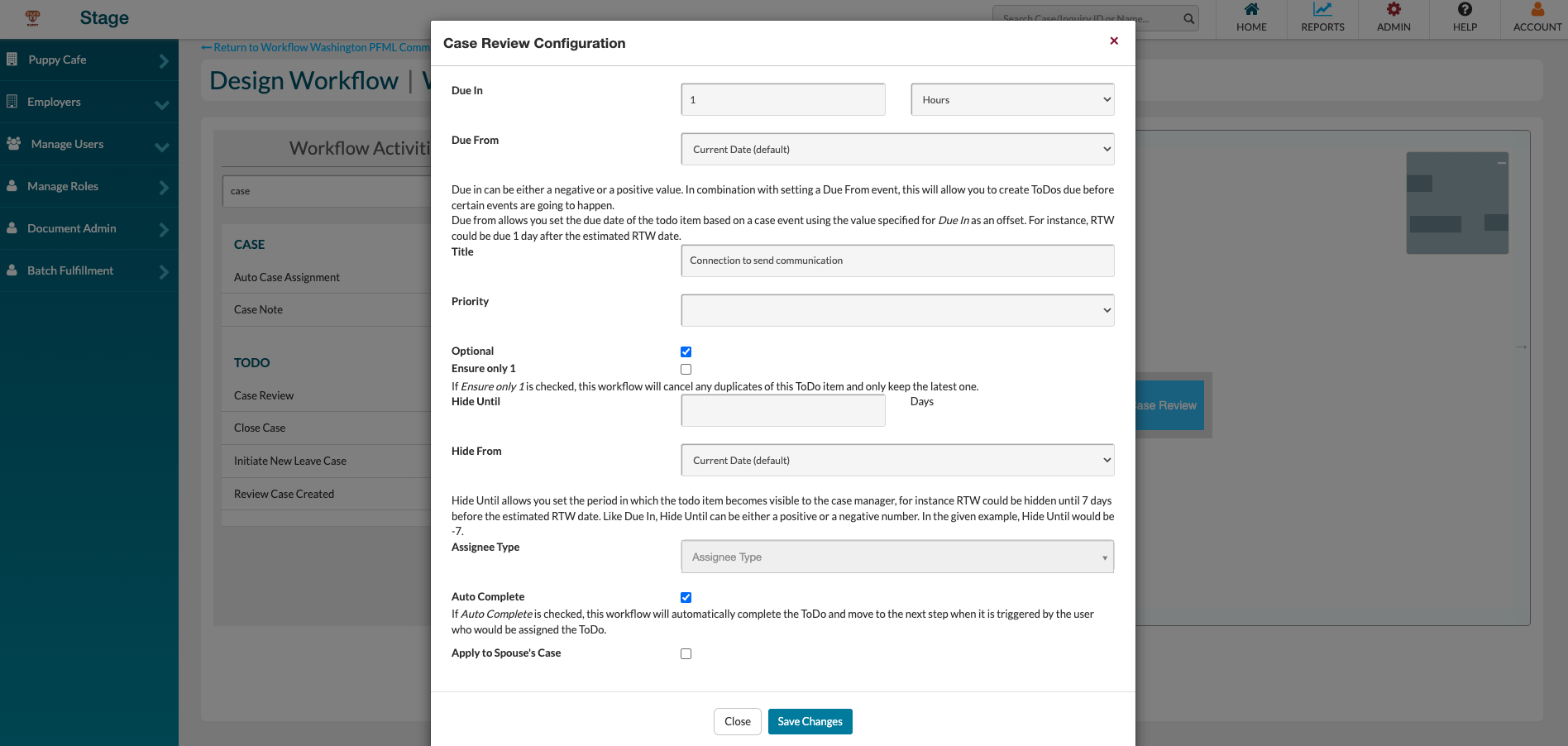
Completing the Workflow Loop
-
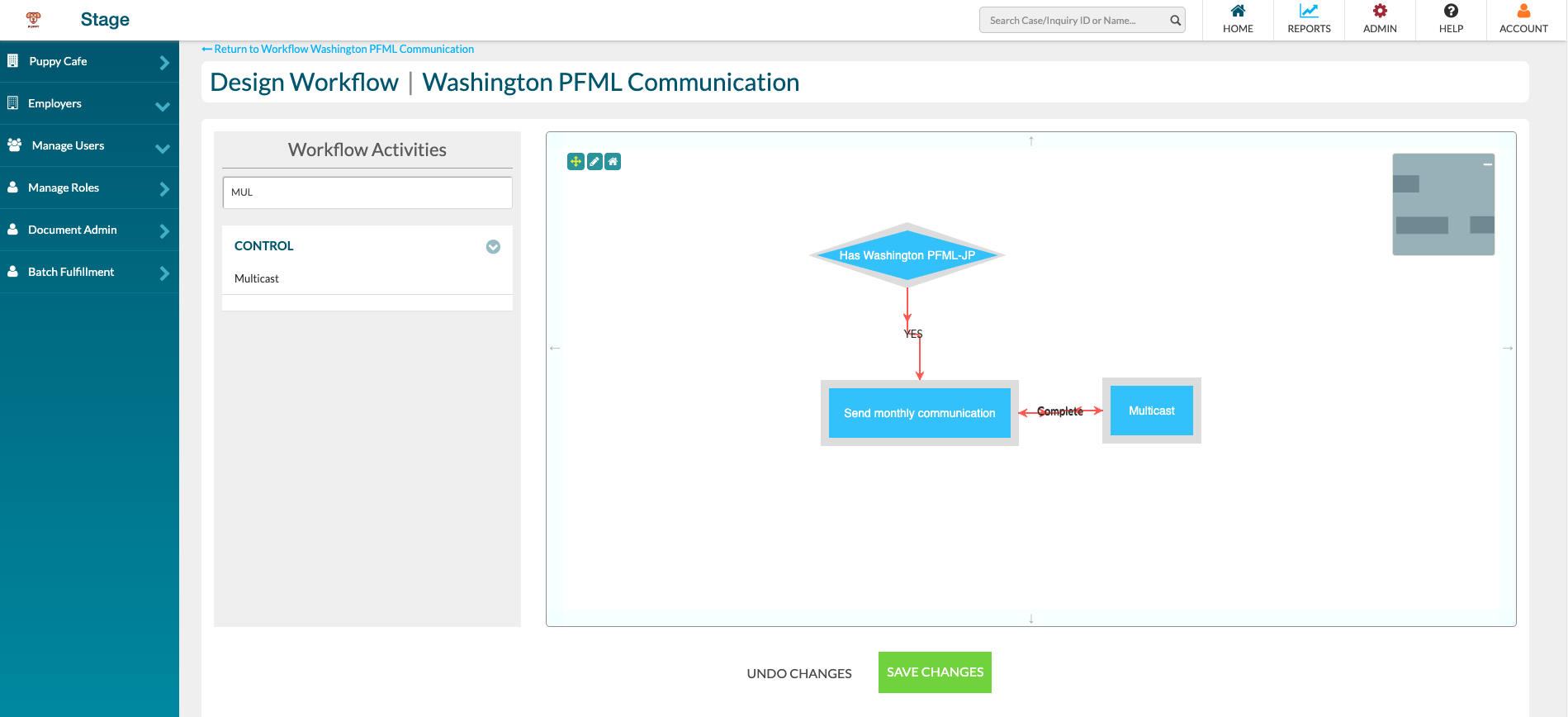
Connect an arrow from the multi-cast node back to the send communication node.
-
This creates a loop that regenerates the monthly to-do after each completion.
-
Click Save to save the complete workflow.
Finished workflow with multicast
Finished workflow with Case Review:
How the Workflow Functions
Once configured, the workflow operates as follows:
-
When a case is created with the Washington PFML-JP policy, the condition is met.
-
A to-do is created with a due date one month from the current date.
-
The to-do remains hidden until seven days before the due date.
-
Staff manually sends the communication when the to-do appears.
-
After sending, the multi-cast node triggers, creating a new to-do for the following month.
-
This cycle continues until the case is closed.
💡 Example: If the communication is sent on December 30, the next to-do will be due on January 30 and will become visible on January 23.
Troubleshooting
If you experience issues with this configuration or notice it is not working correctly, contact the Product team for assistance.